
Installation and quick start
This page takes you from nothing to a running Fione with an administrator account, using Docker. Allow a few minutes for the first build.
What you need
- Docker with Compose v2 (Docker Desktop, or Docker Engine with the compose plugin).
- About 6 GB of disk space for the images and their build cache, plus room for your data.
git,openssl,unzipandcurl.- A current browser. Dark mode needs Chrome or Edge 123+, Firefox 120+ or Safari 17.5+; older ones get the light theme only.
The images are built on your machine from the Fione repository, on amd64 or arm64 (Apple silicon).
1. Get Fione and set its secrets
git clone https://github.com/codelibs/fione.git
cd fione
printf 'FIONE_S3_ACCESS_KEY=%s\nFIONE_S3_SECRET_KEY=%s\n' "$(openssl rand -hex 16)" "$(openssl rand -hex 32)" > docker/.env
docker/.env holds the credentials that Fione and its storage (SeaweedFS) share. Git ignores it; keep it private. Compose refuses to start while either value is empty. docker/.env.example lists the other optional values, and Configuration describes every setting.
2. Start it
docker compose -f docker/compose.yaml --env-file docker/.env up -d --build --wait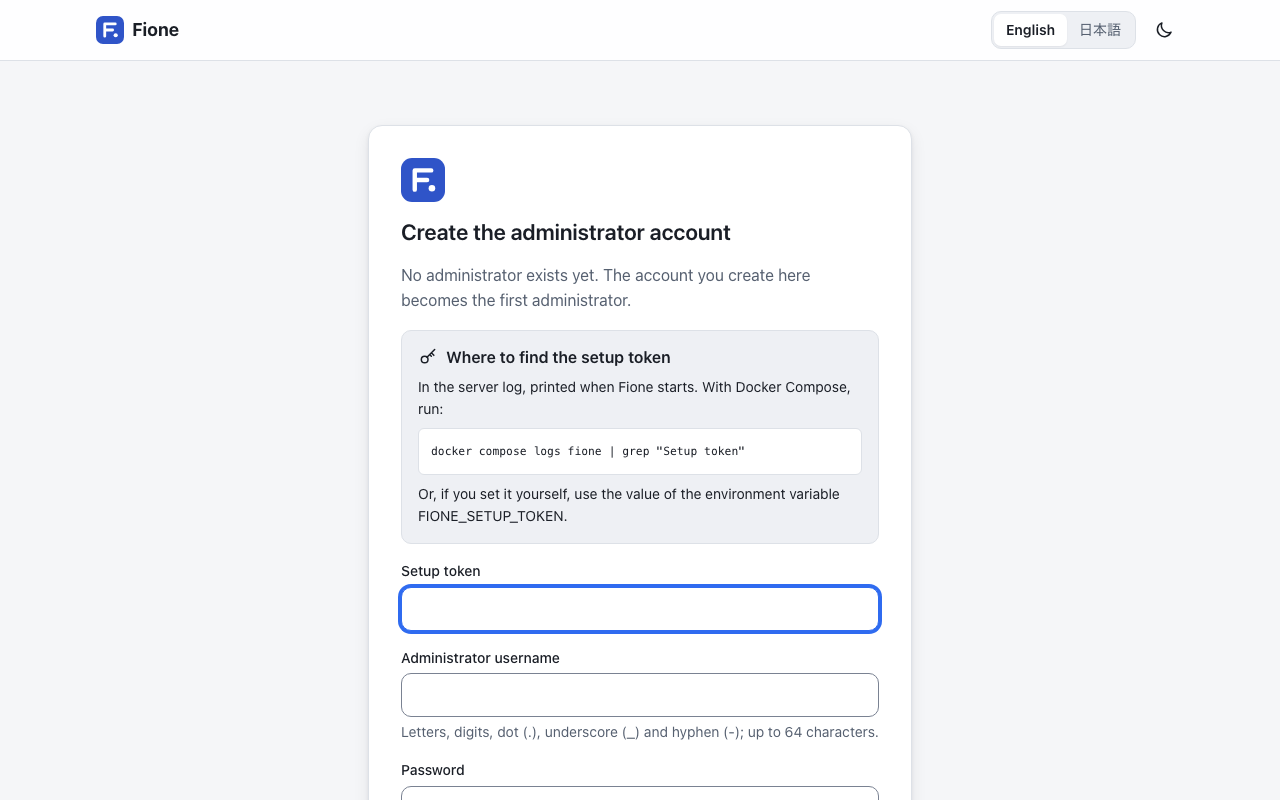
The first build downloads and installs the machine-learning libraries and takes a few minutes. --wait returns when both containers (fione and seaweedfs) are healthy. Fione is then at http://127.0.0.1:8080/. The port is published on this machine only; to serve other people, put a reverse proxy with HTTPS in front of it (see the reverse proxy notes in Configuration).
3. Create the administrator
Fione has no default password. Until an administrator exists, it writes a setup token to its log at every start:
docker compose -f docker/compose.yaml --env-file docker/.env logs fione | grep "Setup token"Open http://127.0.0.1:8080/. The page Create the administrator account asks for:
- the Setup token from the log,
- an Administrator username (letters, digits, dot, underscore and hyphen; up to 64 characters),
- a Password of 8 characters or more, and Confirm password.
Press Create administrator and you are signed in.
Do this soon after the first start: until an administrator exists, anyone who can read the log can do it. If you prefer to choose the token yourself, set FIONE_SETUP_TOKEN (16 characters or more) in docker/.env before starting. Fione then does not print a token in its log, so the grep above finds nothing. The token stops working once an administrator exists.
Afterwards, people sign in on the login page with their username and password. An administrator adds the other users; see Users and sharing.
4. Get a CSV to try
Any CSV with a header row works. To try with the classic iris flowers, export the copy that ships with scikit-learn from the running container:
docker compose -f docker/compose.yaml --env-file docker/.env exec -T fione python -c "from sklearn.datasets import load_iris; d = load_iris(as_frame=True); f = d.frame; f['species'] = d.target_names[f.pop('target')]; f.to_csv('/dev/stdout', index=False)" > iris.csvThis writes iris.csv: 150 rows, four measurements and the species column. Fione accepts CSV files in UTF-8, Shift_JIS or EUC-JP, separated by commas, semicolons, tabs or |, with the column names in the first row. The default upload limit is 1 GiB.
About the assistant banner
The assistant needs a language model, which this quick start does not set up. Until one is reachable, a banner on the pages tells you that the assistant cannot answer yet (for example, "The assistant cannot reach its language model server right now."). That is expected: training, predictions and serving work without it, and only the assistant's comments and proposals are missing. To add a language model, see Assistant.
Next step
Continue with the EasyML wizard to train your first model on iris.csv. To stop, back up or upgrade Fione later, see Operations.